
A few years ago, creating a good-looking video usually meant having at least some combination of:
a camera, editing software, stock footage, music, and enough patience to learn how all of it worked.
Now you can type:
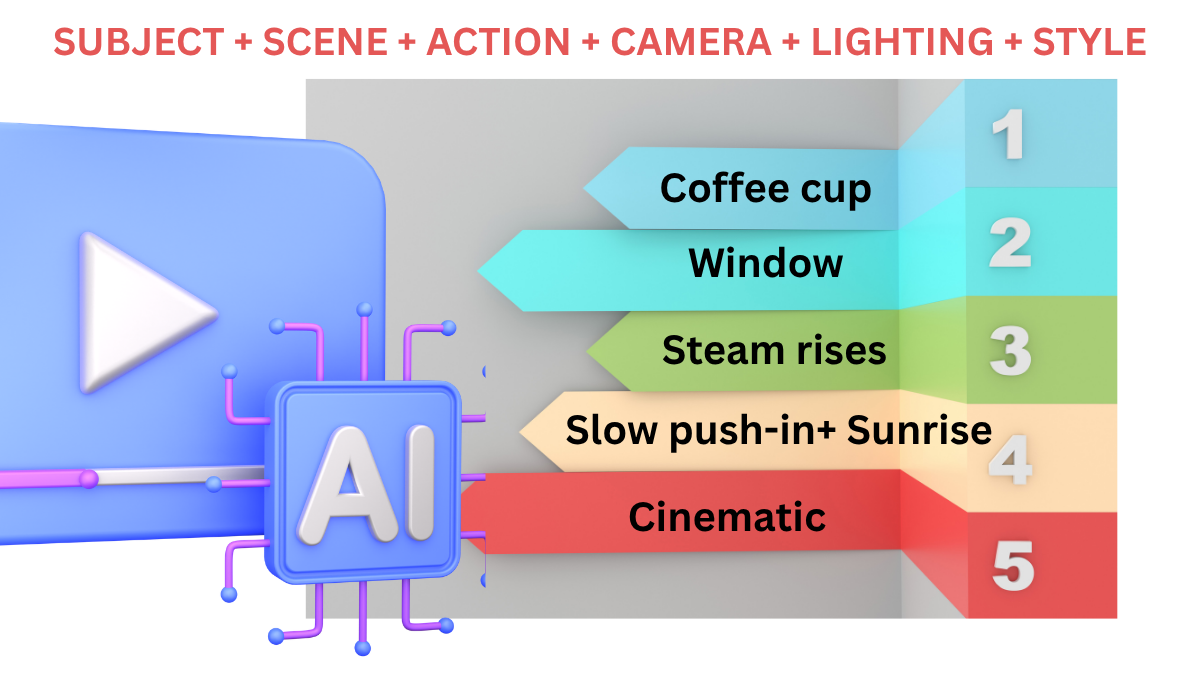
“A steaming cup of coffee on a wooden table at sunrise, slow camera push-in, warm cinematic lighting.
”and an AI tool can generate the clip for you.
Or you can upload a photograph and ask AI to make the camera move, animate the background or bring the subject to life.
That does not mean AI instantly makes perfect videos.
It does mean that ordinary people can now create useful video footage without learning traditional video production first.
AI video tools can help you make:
social-media clips, product shots, YouTube B-roll, presentation visuals, birthday or event videos, website backgrounds, advertising concepts, educational content, and simple cinematic sequences. The three tools we will focus on are:
Runway, Adobe Firefly, and Canva AI.
Each solves a slightly different problem.
The goal of this guide is not to show you 20 AI video generators.It is to help you create your first genuinely useful AI video.
Which AI Video Tool Should You Start With?
Here is the simplest way to decide.
Tool Best For Difficulty
Canva AI Beginners, social media, quick clips Very easy
Adobe Firefly Product shots, creative control, image-to-video Easy–Medium
Runway Higher creative control, cinematic AI video Medium
If you have never generated a video before, start with Canva.
If you want to animate an existing photograph or product image, try Adobe Firefly.
If you want deeper camera control and more cinematic experimentation, use Runway.
You do not need all three.
Method 1: Create a Video From a Simple Text Prompt With Canva
Canva is probably the least intimidating option for someone who has never used AI video.
Its current Canva AI video tool can generate short video clips directly from text prompts.
Canva currently documents 8-second clips with audio or 6-second clips without audio in Canva AI, with generated footage editable afterward inside Canva's normal video editor.
Official application Open Canva AI
How to Create Your First Clip
Open Canva.
Choose Canva AI.
Select Video clip.
Now describe what you want.
For example:
A peaceful tropical beach at sunrise. Small waves gently move toward the shore. Palm leaves move slightly in the breeze. Slow cinematic camera movement. Warm realistic lighting.
Generate.
Canva will create a short clip.
You can then choose Use Canva Editor to:
add text, trim the clip, add music, combine several clips, or turn the result into a Reel or presentation video. That is enough to create a basic AI video without understanding timelines, keyframes or complicated editing software.
The Biggest Beginner Mistake: Writing a Prompt Like a Google Search
This:
beautiful beach video is technically a prompt. But it leaves almost everything to AI.A better prompt explains:
What is in the scene
What is happening
How the camera moves
What the lighting looks like
What style you want
For example:
A quiet tropical beach at sunrise. Gentle waves roll onto white sand. Palm trees sway slowly. The camera moves forward toward the water. Warm golden morning light. Realistic cinematic style.That gives the model much more useful direction.
The Simple AI Video Prompt Formula
Use this:
Subject + Environment + Action + Camera + Lighting + Style
Example:
A red sports car
driving through a mountain road
while light snow falls
camera follows from behind
soft morning light
cinematic realistic footage Put together:
A red sports car drives through a winding mountain road while light snow falls.
The camera follows smoothly from behind. Soft morning light, realistic cinematic footage.
You do not need complicated prompt engineering.
You need clear visual instructions.
Runway's own current prompting guide says effective text-to-video prompts should describe both what the viewer sees and how the scene moves, including subject, environment, lighting, composition and motion.
Method 2: Turn a Photograph Into a Video
This is where AI video becomes much more useful for ordinary users.
Suppose you already have:
a product photograph,
a wedding picture,
a landscape,
an illustration,
or an AI-generated image.
Instead of generating an entirely new scene, you can use that image as the starting frame.
This is called Image to Video.
Adobe Firefly and Runway both support this workflow..
Imagine you have a photograph of a perfume bottle sitting on a table.
Upload it.
Do not describe the bottle again in great detail.
The image already tells AI what the bottle looks like.
Instead describe the movement:
The camera slowly moves toward the bottle.
Soft reflections move across the glass.
Light mist drifts gently behind the product.
Premium luxury advertisement style.
This is much better than:
Create a beautiful perfume advertisement.
Runway specifically recommends focusing image-to-video prompts primarily on motion, because the uploaded image already establishes composition, subject, lighting and style.
Method 3: Adobe Firefly for More Control
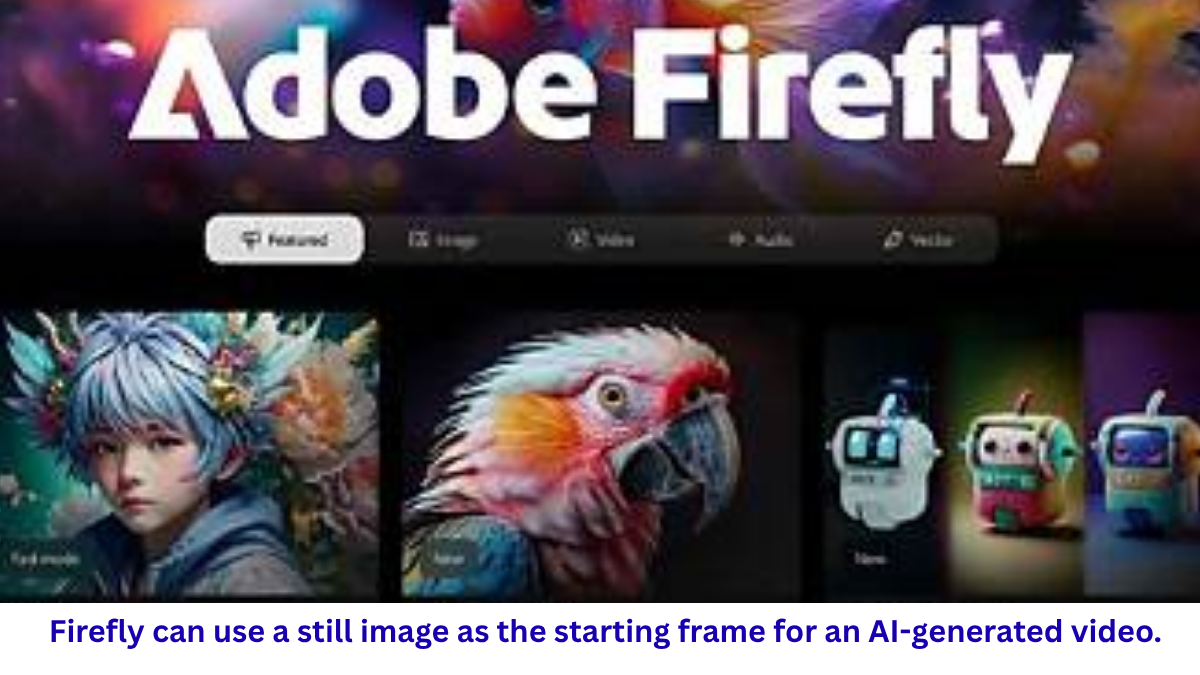
Adobe Firefly has become especially interesting for video because its current workspace combines image generation, video generation and editing.
Firefly lets you create video from text or images, adjust camera settings and work with Adobe as well as supported partner video models inside the same environment.
Official application Adobe Firefly AI Video Generator
Basic Firefly Workflow
Open Firefly.
Choose Generate Video.
Choose your model.
Either:
type a text prompt, or upload an image as the starting frame.
Then configure available options such as: aspect ratio, resolution, duration, camera, and style.
Generate your clip.
Adobe currently supports Firefly video generation in landscape 16:9, vertical 9:16, and square 1:1 workflows depending on the selected model/settings. Firefly's own video model currently offers options including 540p, 720p and 1080p in supported workflows.
Firefly Has a Useful Beginner Feature: Enhance Prompt
Sometimes you know what you want but do not know how to describe it.
Firefly includes an Enhance Prompt option that can expand a simple description into a more detailed video prompt.
You might type:
Woman drinking coffee by window.
Enhance Prompt can turn that basic idea into something more descriptive.
This is useful for beginners because you can learn what details AI video models respond to by comparing your original prompt with the enhanced version.
Firefly Camera Controls Explained Simply
Video prompts become much easier once you understand four terms.
Shot Size
How much of the scene do we see?
Close-up:
face or product detail.
Medium shot:
person from around waist/chest upward.
Wide shot:
subject plus environment.
Camera Angle
Where is the camera?
Eye level.
From above.
Low angle.
Aerial.
Camera Motion
Does the camera move?
Pan.
Tilt.
Zoom.
Dolly forward.
Tracking.
Handheld.
Style
How should the finished footage feel?
Cinematic.
Documentary.
2D animation.
3D animation.
Stop-motion.
Fantasy.
Adobe currently provides presets and camera settings covering many of these choices directly in Firefly.
A Firefly Prompt Worth Testing
Cinematic medium shot of a steaming cup of coffee on a rustic wooden table beside a window.
Morning sunlight enters through the window.
Steam slowly rises from the cup.
Camera gently pushes forward.
Warm natural colours,
realistic advertising footage.
Then try changing only:
Camera gently pulls backward.Compare the result.This is one of the best ways to learn AI video.
Change one thing at a time.
Method 4: Runway for More Advanced Video Generation
Runway is worth learning once you understand the basics.
Its current Gen-4.5 model supports both Text to Video and Image to Video and is Runway's latest high-quality generative video model.
Runway currently supports generated clips from roughly 2 to 10 seconds in Gen-4.5.
Official application Open Runway
Official prompting guide
Runway Video Prompting Guide
How to Create a Text-to-Video Clip in Runway
Open Runway.
Choose Generate Video.
Select Gen-4.5 where available.
Choose Text to Video.
Enter your prompt.
Example:
A small fishing boat moves slowly through calm water at sunrise.
Light mist floats above the lake.
The camera tracks the boat from the side.
Natural documentary footage, soft morning light.
Generate.
Then evaluate the result.
Instead of completely rewriting the prompt if something is wrong, change only the relevant part.
For example:
If the camera moves too quickly:
The camera tracks slowly and steadily beside the boat.
If the scene looks too artificial:
Natural documentary footage, realistic lighting, subtle colours.
Iteration is a normal part of AI video generation. Runway itself recommends beginning simply and adding detail gradually rather than starting with an overly complex prompt.
A Better Way to Prompt: Think in Shots
Do not ask:
Make a 30-second advertisement where a man wakes up, makes coffee, drives to work, enters an office, gives a presentation and celebrates.
That is too much for one generation.
Think like a filmmaker.
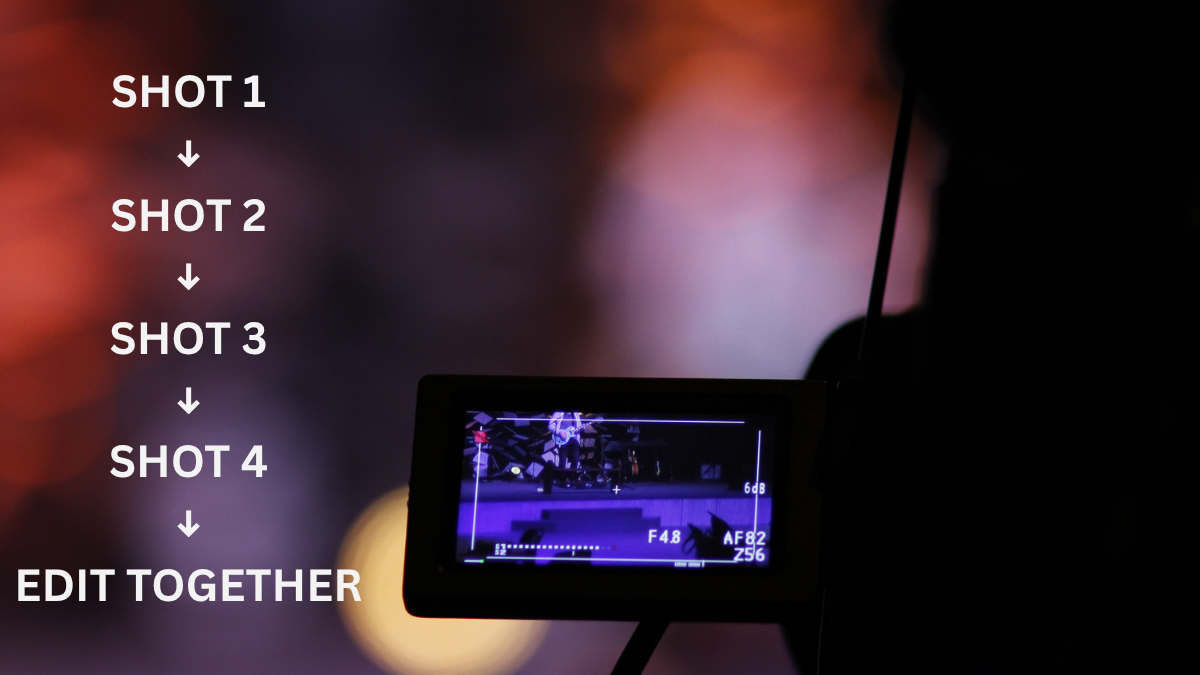
Shot 1
Close-up of an alarm clock beside a bed as morning sunlight enters the room.
Shot 2
Medium shot of a man preparing coffee in a modern kitchen.
Shot 3
Wide shot of a car driving through a busy city.
Shot 4
Professional presenting confidently in a modern meeting room.
Generate short clips separately.
Then combine them in Canva, Firefly or another video editor.
This produces much better results.
Runway similarly recommends treating short generations as individual scenes rather than trying to force many unrelated actions into one clip.
The Five-Second Rule
A simple beginner principle:
One short clip = one main action.
Good:
Woman opens umbrella as rain begins.
Bad:
Woman opens umbrella, enters taxi, reaches airport, boards plane and looks through window.
The second prompt asks AI to tell an entire story inside a very short generation.Break it into scenes.
How to Animate Your Own Photos
AI image-to-video is excellent for personal creative projects.
You could animate:
old family photos,
travel photographs,
wedding images,
AI artwork,
product photographs,
food photography
architectural renders.
For example:
Upload a photograph of a mountain valley.
Prompt:
Clouds move slowly across the mountains.
Grass gently moves in the wind.
The camera slowly pushes forward.
Realistic natural motion.
The key is subtle movement.
Beginners often ask AI to do too much.
Small believable movement usually looks better.
How to Make Better Social-Media Videos
If you are making Instagram Reels,
YouTube Shorts or similar vertical content, generate in 9:16 when your tool supports it.
For standard YouTube or website video:use 16:9.
For social posts:1:1 can also work.
Choosing the correct aspect ratio before generation prevents awkward cropping later.
Firefly currently supports common formats including widescreen, vertical and square for its own supported video generation.
Example:
Create a Reel Without Filming Anything
Suppose you want a short Reel:
“3 reasons to drink more water.”
You could generate three pieces of B-roll.
Clip 1
Close-up of cold water being poured into a clear glass, condensation visible, bright natural kitchen light, slow motion.
Clip 2
Young professional drinking water at a desk beside a laptop, bright modern office, realistic lifestyle footage.
Clip 3
Water bottle beside running shoes in a park during sunrise, cinematic golden-hour lighting.
Combine the clips in Canva.
Add your text.
Add music.
Now you have a complete short-form video without filming the B-roll yourself.
How to Create Product Videos Without a Studio
This is one of the strongest practical AI-video use cases.
Take a clean photograph of your product.
Upload it into Firefly or Runway.
Ask:
Camera slowly circles around the product.
Soft studio reflections move across the surface.
Subtle background movement.
Premium commercial product photography style.
Suddenly a static image becomes a product clip.
This can be useful for:
small businesses,
Instagram sellers,
restaurants,
freelancers,
online stores,
and marketing teams.
Adobe specifically promotes Firefly video generation for product shots, marketing footage, B-roll and social clips.
Why Your AI Video Sometimes Looks Strange
You may see:
hands changing shape,
objects appearing suddenly,
faces changing,
incorrect physics,
unnatural movement,
or backgrounds transforming.
This does not necessarily mean you prompted badly
AI video still involves generation uncertainty.
But you can improve results.
Fix 1: Simplify the Prompt
Instead of:
A happy woman walking quickly through a crowded futuristic city carrying several shopping bags while talking on the phone as vehicles fly around her and neon signs flash everywhere.
Try:
A woman walks through a futuristic city while carrying shopping bags.
The camera tracks beside her.
Neon signs glow in the background.
Cinematic nighttime footage.
Get the main movement working first.
Then add details.
Fix 2: Reduce the Number of Subjects
One person usually works more reliably than eight people doing different things.
Adobe's own Firefly video guidance notes that simpler scenes and single subjects generally perform better than complex groups.
So instead of:
Ten friends dancing around a table while people cook behind them...start with:
Three friends laughing around a dinner table.
Fix 3: Describe What SHOULD Happen
Runway recommends using positive descriptions rather than negative prompts.
Instead of:
No camera movement.
use:
Locked camera.
Camera remains still.
Instead of:
Don't move the background
use:
Background remains still.
This gives the model something concrete to generate.
Fix 4: Use an Image When Consistency Matters
Text-to-video gives AI freedom to design the scene.
That is useful for exploration.
But if you care about:
a specific product,
a specific outfit,
a character design,
a room,
or a particular composition,
start with an image.
Then animate it.
Image-to-video gives you much more control over the starting appearance.
Fix 5: Describe Camera Motion Clearly
Useful phrases include:
slow camera push-in
locked camera
handheld camera
camera tracks the subjects
low pan from left to right
aerial camera moves forward
camera gently circles around the product
Runway maintains a dedicated camera-terms guide because camera instructions can strongly influence how generated footage feels.
The Best AI Video Prompt Template
Save this.
Visual style: [realistic/cinematic/animation/etc.]
Shot: [close-up/medium/wide]
Subject: [who or what]
Environment: [where]
Action: [what happens]
Camera: [how camera moves]
Lighting: [sunrise/studio/night/etc.]
Mood: [calm/dramatic/premium/etc.]
Example:
Realistic cinematic footage.
Medium shot of a young chef in a small modern kitchen.
The chef slowly places fresh pasta onto a plate.
Camera gently pushes forward.
Warm restaurant lighting.
Premium food-commercial aesthetic.
This works because you are describing something a camera could actually record.
Text-to-Video vs Image-to-Video
Use Text to Video when:
you are exploring an idea,
you do not already have an image,
the exact character does not matter,
you need background/B-roll footage.
Use Image to Video when:
you have an existing photograph,
you need consistent product appearance,
you want to animate artwork,
the composition matters.
This is one of the most important choices beginners can make.
Canva vs Firefly vs Runway: Which Should You Use?
Choose Canva if:
You want the simplest workflow.
You mainly create:
Reels,
social posts,
presentations,
short marketing content.
It is especially useful because the generated video can move directly into Canva's existing editor.
Choose Adobe Firefly if:
You want:
product videos,
image-to-video,
camera controls,
different aspect ratios,
creative experiments,
or an image/video workflow in one environment.
Adobe currently allows users to work with its own Firefly models plus selected partner models from the same ecosystem.
Choose Runway if:
You want:
more advanced motion control,
cinematic experimentation,
text-to-video,
image-to-video,
more detailed prompting.
Runway's current Gen-4.5 is its most advanced general video-generation model.
One Important 2026 Update: Don't Follow Old Sora Tutorials
You may still find older articles recommending OpenAI Sora as a standalone text-to-video product.
Those tutorials are now outdated.
OpenAI's official Sora page currently states that the Sora product was discontinued on April 26, 2026.
So for a current 2026 practical guide, it makes more sense to direct beginners toward active tools such as:
Canva,
Adobe Firefly,
and Runway.
This is exactly why AI-tool articles should be updated regularly.
Five Copy-Paste AI Video Prompts
Product Advertisement
Cinematic close-up of a luxury perfume bottle on a dark stone surface.
Soft light moves across the glass.
Light mist drifts behind the product.
Camera slowly circles around the bottle.
Premium commercial advertising style.
Travel Video
Wide cinematic shot of a peaceful mountain valley during sunrise.
Thin clouds move slowly between the mountains.
Grass moves gently in the wind.
Camera slowly pushes forward.
Realistic travel-documentary footage.
Food Video
Close-up of freshly baked pizza on a wooden table.
Steam rises gently.
Cheese stretches as one slice is lifted.
Warm restaurant lighting.
Slow cinematic camera movement.
Social-Media Lifestyle Clip
Young professional working on a laptop beside a large window in a modern café. People move softly in the background.
Camera slowly tracks from left to right.
Natural daylight,
realistic lifestyle footage.
Animated Illustration
The illustrated character slowly looks upward and smiles while leaves move gently in the background.
Camera remains mostly still with a subtle push-in.
Smooth animated movement.
How to Make a Longer Video
Do not try to generate a complete 60-second video in one prompt.Instead:
write the idea,
split it into scenes,
generate each scene,
choose the best outputs,
then combine them in an editor.
A simple 30-second video might contain:
Scene 1 — 5 seconds
Introduction.
Scene 2 — 5 seconds
Problem.
Scene 3 — 5 seconds
Solution.
Scene 4 — 5 seconds
Product/use case.
Scene 5 — 5 seconds
Result.
Scene 6 — 5 seconds
Call to action.
Generate one clip per scene.
That gives you much more control.
AI Can Also Help Write the Video Before Generating It
Before opening a video generator,
use a general AI assistant to create your shot list.
Prompt:
I want to create a 30-second vertical video explaining [topic].
Break it into six 5-second shots.
For each shot give me:
what the viewer sees
subject
action
camera movement
text overlay
AI-video-generation prompt
Keep each shot visually simple enough for an AI video generator.
Then take each prompt into Canva, Firefly or Runway.
This turns a vague idea into an actual production plan.
What AI Video Is Good At — and What It Isn't
AI video is currently excellent for:
B-roll,
visual concepts,
short social clips,
product animation,
background footage,
stylised scenes,
storyboards,
short transitions.
It is less reliable when you require:
long uninterrupted scenes,
many people performing precise actions,
exact dialogue,
perfect hand movement,
long-term
character consistency,
or exact product/legal accuracy.
Use it where the technology is strongest
A 15-Minute Beginner Workflow
Minute 1–2
Decide what one short shot should show.
Minute 3
Write:
Subject + action + camera + lighting + style.
Minute 4–7
Generate your first version.
Minute 8
Identify the biggest problem.
Minute 9–11
Change only that part of the prompt.
Minute 12–13
Generate again.
Minute 14–15
Choose the better clip and take it into your editor.
That workflow teaches you more than reading 30 pages of prompt theory
Final Thoughts
AI video generation becomes much easier when you stop thinking:
“Make me an amazing video.
”and start thinking:“
What should happen in this one shot?
”Choose the tool that fits the task.
Use Canva
when you want simplicity.
Use Firefly
when you want an accessible creative workflow and stronger image/video controls.
Use Runway
when you want more advanced motion and cinematic experimentation.
Then remember the most useful prompt rule in this article:
Describe what the camera should see and what should move.
You do not need to become a filmmaker before trying AI video.
But learning a few filmmaking ideas shot size, camera movement, lighting and scene structure will immediately make your AI videos look better.
That is the practical advantage AI should give ordinary users:
not replacing creativity, but making creative tools far easier to access.
Explore:
ChatGPT –Claude – Gemini
Frequently Asked Questions
What is the easiest AI video generator for beginners?
Canva is one of the easiest starting points because users can generate short video clips and immediately continue editing inside Canva. Its current Canva AI workflow supports short text-generated clips and optional reference images.
What is the best AI video generator for cinematic clips?
Runway is a strong option for users who want more control over motion, camera behaviour and visual direction.
Its current Gen-4.5 model supports Text to Video and Image to Video.
Can Adobe Firefly turn an image into a video?
Yes. Firefly allows users to upload images as frames and generate motion from them using text instructions.
Can Canva generate videos from text?
Yes. Canva AI currently supports generating short video clips directly from text prompts, with optional reference images.
How long should my AI video prompt be?
There is no perfect length. Start with a clear description of subject, environment and motion, then add camera, lighting and style only where necessary. Runway specifically recommends starting simple and iterating.
Should I use text-to-video or image-to-video?
Use text-to-video when you want AI to create the entire scene. Use image-to-video when you already have a subject, product, artwork or composition you want to preserve.
Is OpenAI Sora still available?
No. OpenAI's official page states that the Sora product was discontinued on April 26, 2026.
>>best AI video generators in 2026